
Anime Champions X Champion Inventory: How to Open It, Find Champions and Use the Controls
Open the Champions inventory from the HUD's Inventory button, find champions with the search box and sort menu, read each champion's card and passive details, and manage stored units with Equip, Equip Best, Unequip All, Feed and Dismantle.
Quick answer
Open the Champions inventory from the Inventory button on the left edge of the main HUD — the HUD shows an H key hint on that button. Search or sort the grid to find a champion, click its card to read the details, and manage it with Equip, Equip Best and Unequip All.
- The HUD's left side carries six buttons: Play, Summon, Store, Quests, Travel and Inventory, with a Season Pass button underneath. Quests, Travel and Inventory print the key hints J, M and H.
- The Champions window has a search box, a sort dropdown (seen set to Last Acquired), a capacity counter and a grid of champion cards labeled by champion name.
- Selecting a card opens a detail card with the champion's name, rarity and stats, plus Equip, Transform, Fuse and Unlock actions.
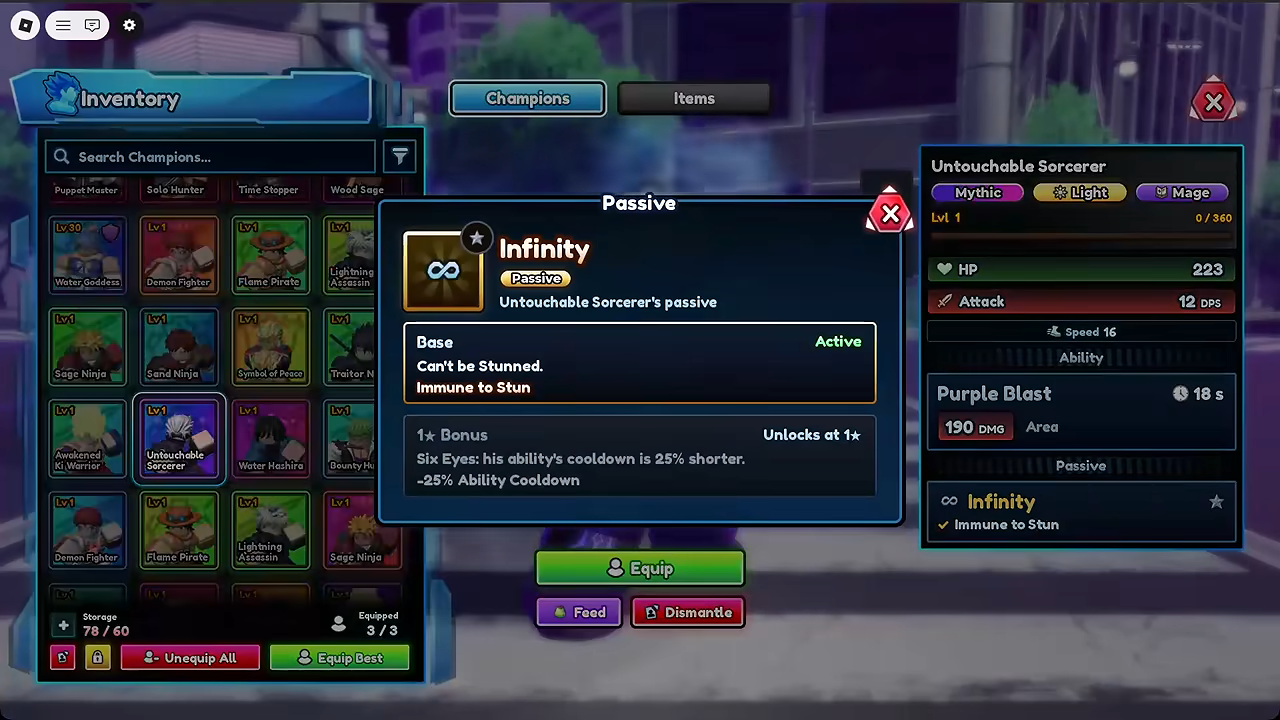
- The wider Inventory screen also lists Feed, Dismantle, Equip Best and Unequip All for managing stored champions.
Opening the Champions inventory
The Champions inventory lives behind the Inventory button on the left side of the default HUD. That edge of the screen carries a DPS readout and six buttons — Play, Summon, Store, Quests, Travel and Inventory — with a Season Pass button underneath the row. Three of those buttons print keyboard hints: Quests on J, Travel on M and Inventory on H, so H is the shortcut shown on the inventory button in that view.
While you're looking at the HUD, note the bottom-centre strip: your gold and gems sit above a squad bar with four numbered slots, which shows the champions currently in your squad. The squad guide explains how those slots work — the inventory is where the champions you place there are stored and managed.
One thing to know before you memorize a hotkey: the two available views of the game disagree. The HUD image prints H on the Inventory button, but the pre-launch gameplay trailer shows the full Inventory → Champions screen opening with a C hotkey instead. Rather than betting on either key, use the hint printed on your own Inventory button in-game — and if the key does nothing, the button itself opens the window.
Treat the layout as a template rather than a guarantee. These screens were documented in pre-launch footage around the game's 26 November 2026 release, so the exact capacity number and the precise set of buttons can differ slightly in the live build.
Finding a specific champion in the grid
The Champions window is arranged as a lookup tool. Across the top sit a search box, a sort dropdown — seen set to Last Acquired — and a capacity counter, with the champion grid filling the space below. To pull up one specific champion, type its name into the search box instead of scrolling the grid; to browse, flip the sort so the cards order by when you acquired them.
The counter beside them tracks your collection against your storage limit. The footage shows it as 35/100 in the Champions window and 78/60 in the full Inventory → Champions screen, so treat it as live data about your own account rather than a number to memorize.
Every card in the grid is labeled with its champion's name — the trailer's grid showed names like Kioken, Apex Fury, GOD LUCK, Shinrei and Itakai, and the full screen revealed 20 distinct champions in storage. The cards also carry color-coded rarity labels: Secret, Mythic, Legendary and Rare tiers were all visible across summon results and the inventory, and Cosmic appears on champion detail cards as well. That rarity color lets you judge a card's tier before you even click it. The rarities guide breaks down what each tier means, and the champions list collects the full roster.
Reading a champion's card
Clicking a card in the grid opens the detail card for that champion, showing its name, rarity and stats. The example captured in the trailer was Takeshi: Cosmic rarity, 58M damage at Level 120, with the level line showing a paired readout of n204T/500T. What those stats mean in a fight is covered in the combat stats guide.
Alongside the stats, the detail card carries the champion's action buttons — Equip, Transform, Fuse and Unlock — plus a Harmony 3 indicator on the selected champion and the Unequip All and Equip Best shortcuts.
The passive and ability panel
The inventory also includes a passive inspection modal, which lays out a champion's ability and passive details in one view. The panel captured in the trailer, for Untouchable Sorcerer at Level 1, reads like this:
Data table
- Panel field
- Rarity · Element · Class
- Untouchable Sorcerer at Lv 1
- Mythic · Light · Mage
- Panel field
- Base stats (Lv 1)
- Untouchable Sorcerer at Lv 1
- 223 HP · 12 DPS · Speed 16
- Panel field
- Active ability
- Untouchable Sorcerer at Lv 1
- Purple Blast — 190 DMG (Area), 18 s cooldown
- Panel field
- Base passive
- Untouchable Sorcerer at Lv 1
- Infinity — Can't be Stunned
- Panel field
- 1★ ascension bonus
- Untouchable Sorcerer at Lv 1
- Six Eyes — -25% Ability Cooldown
Every field on that panel is champion-specific. The base stats line shows HP, DPS and Speed at the champion's current level — the example was a fresh Lv 1 with 223 HP, 12 DPS and Speed 16. The active ability line gives damage, target pattern and cooldown: Purple Blast hits for 190 DMG in an Area on an 18-second cooldown. The base passive is a permanent trait — Infinity makes Untouchable Sorcerer immune to Stun — and the ascension line previews what a star unlocks: at 1★, Six Eyes reduces Ability Cooldown by 25%.
The panel also states the champion's rarity, element and class together — Mythic · Light · Mage for this one. The elements and classes guide explains those categories, the abilities guide covers how actives and passives work in combat, and the star bonuses guide explains ascension. For this champion specifically, the Untouchable Sorcerer page has the full breakdown.
Equipping and managing stored champions
The everyday actions sit right on the detail card. Equip equips the champion shown on the card. Equip Best does the same job in one click, letting the game pick from your collection instead of you scrolling the grid. Unequip All is the reverse: it removes every current equip in a single action.
The full Inventory → Champions screen adds two more management actions: Feed and Dismantle. Those are larger systems of their own — the feeding guide and the dismantling guide cover how each one works. Transform, Fuse and Unlock round out the buttons shown on the detail card; Equip is the control this page focuses on, and the others appear beside it as further actions for the selected champion.
As your collection grows, keep an eye on the capacity counter at the top of the window so you know when your storage is filling up. And when you want the shortcuts beyond J, M and H — dash, retreat and the rest — the controls guide collects them in one place.